Turn a Figma frame into a landing page
Paste the campaign frame and a notes frame. Replo builds the landing page, wires the buy buttons and publishes it.
 Brew guide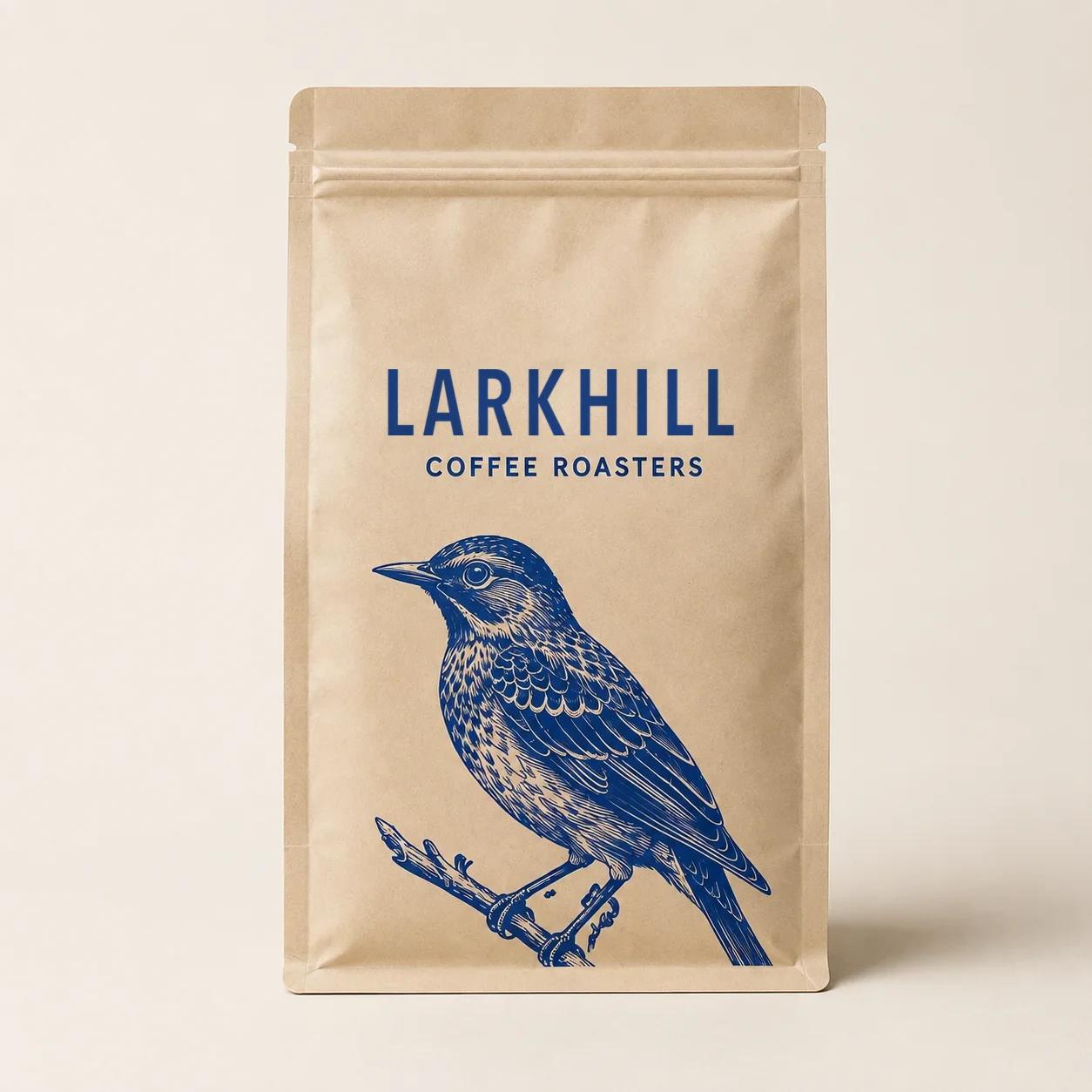
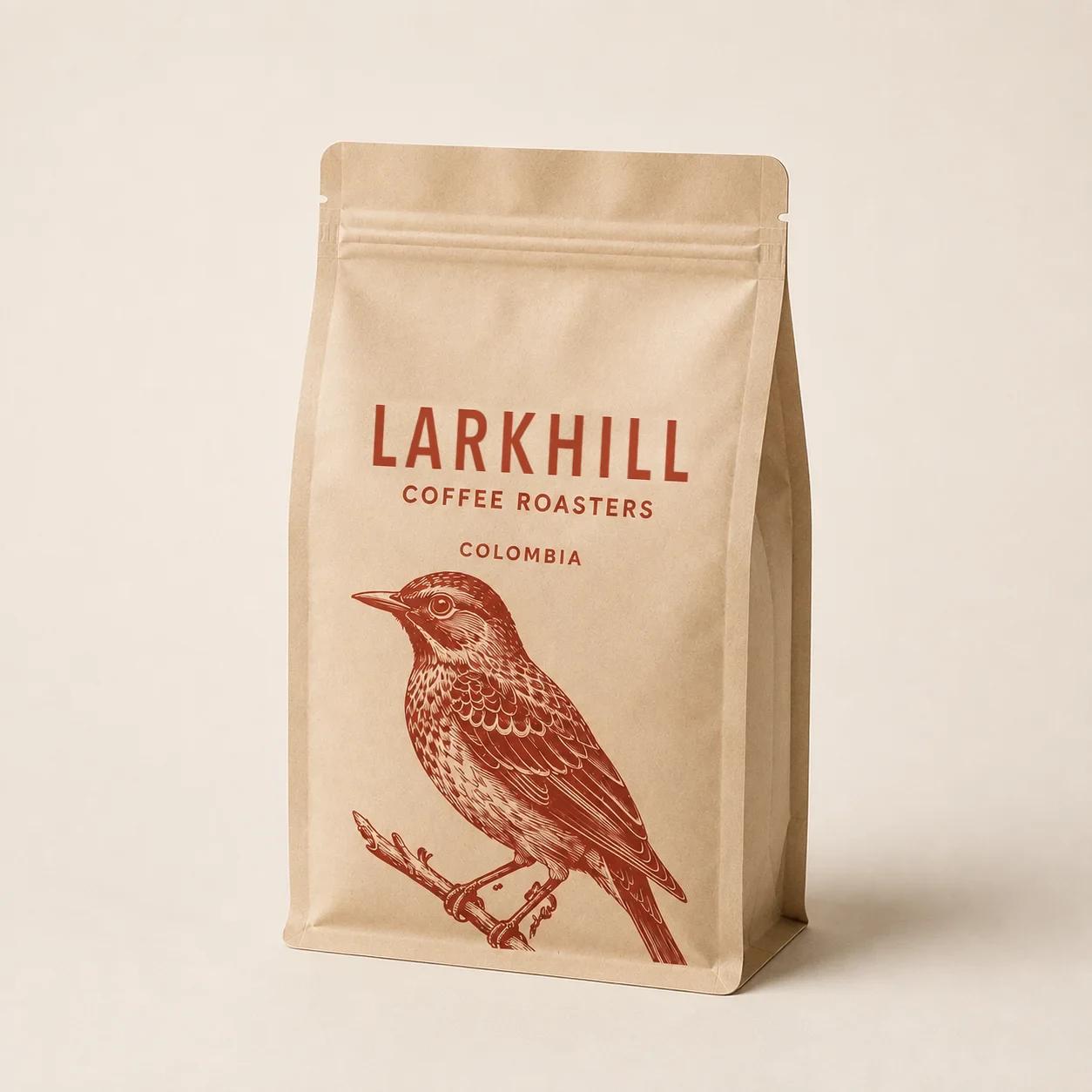
 Live from Shopify
From frame link to live page, in four steps
Connect Figma
In Replo's Integrations, connect Figma once for your project or just for you.
Paste a frame link
Paste the file or frame link in chat and say what the page is for.
“Build this frame as a landing page for our spring sale ad. Notes are in the second frame.”
Check the preview
Replo builds the page and shows it at desktop and phone widths before anything goes live.
Publish
Publish on your own domain or a free replosites.com address, then keep editing in chat.
The frame you approved, live
Replo reads the frames, styles and images straight from your file.
- Phone frame matched on phones
- Desktop frame for tablet and up
- Your design's fonts copied in
 Log inCart (0)
Limited release · 1,800 bags · 6 weeks only
Ethiopia Guji is back.
A natural-process lot from 2,100 meters in the Guji Zone, roasted light to keep every bit of peach and jasmine.
1,296 of 1,800 bags claimed$2.17 per cup
Ships Oct 21 Direct trade, $4.10/lb to farmers
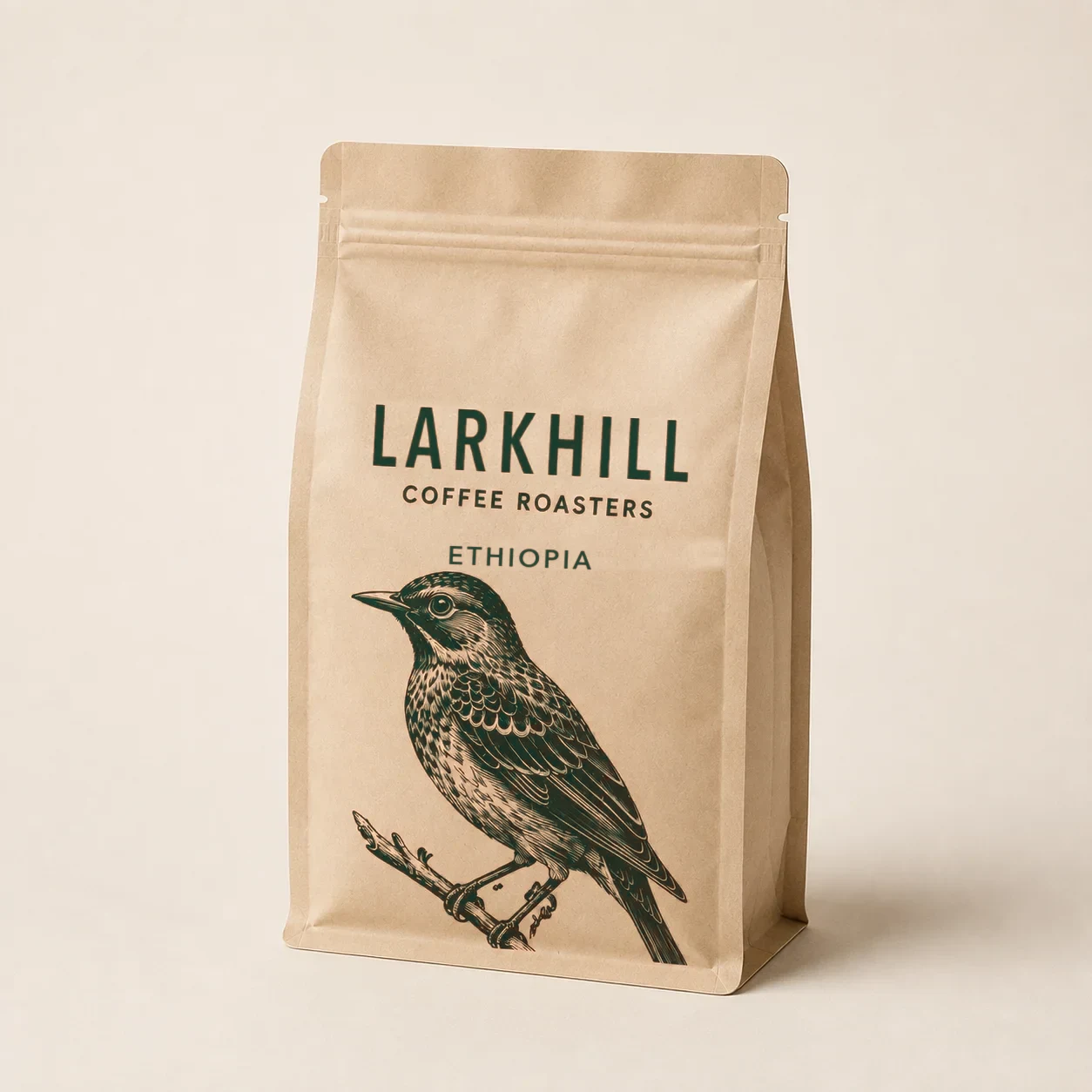 Just
Justback!Lot 14 · Harvest Dec 2025
Origin
Guji Zone, Oromia
Process
Natural, 21-day dry
Elevation
2,100 meters
Variety
Heirloom Kurume
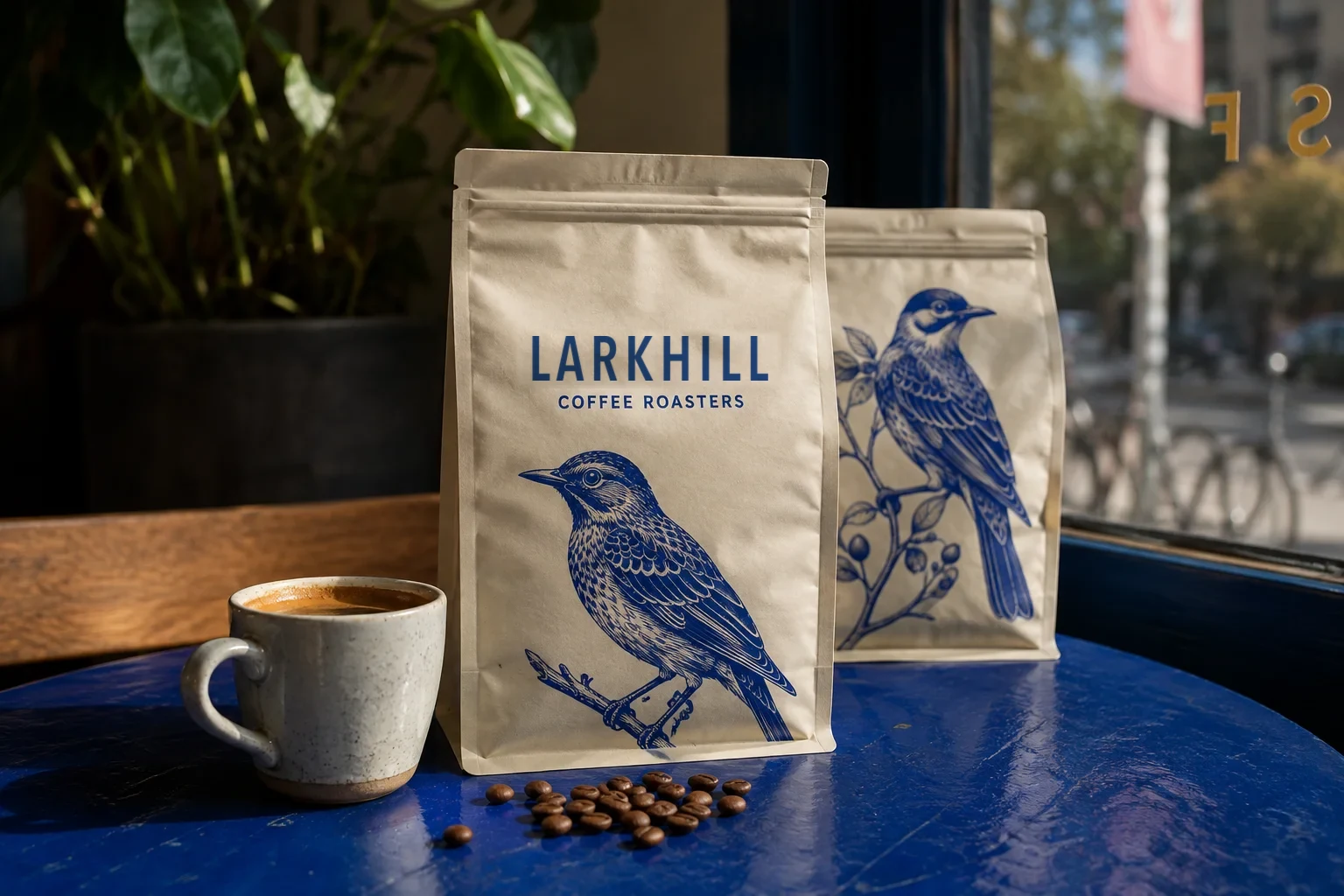
“The cup tastes like a peach that fell into a jar of honey.”
— Tsegaye Bekele, head of the Guji washing station we buy from
How to brew it
01
Pour-over
22 g coffee, 350 g water at 94°C. Bloom 45 s, finish by 3:15.
02
Iced
Brew double strength over 150 g ice. The peach gets louder cold.
03
Espresso
18 g in, 42 g out in 28 s. Pull it long for a juicy shot.
First cups are in
4.9 · 1,284 reviews“Ordered three bags last year and regretted not ordering six.”
Noor A. · Verified buyer
Subscriber since 2022
“Iced, it tastes like peach tea. My whole office asked what it was.”
Chris B. · Verified buyer
Pour-over and iced
“Best light roast I've had outside of a café in Addis.”
Selam G. · Verified buyer
Espresso
Keep the cupboard full
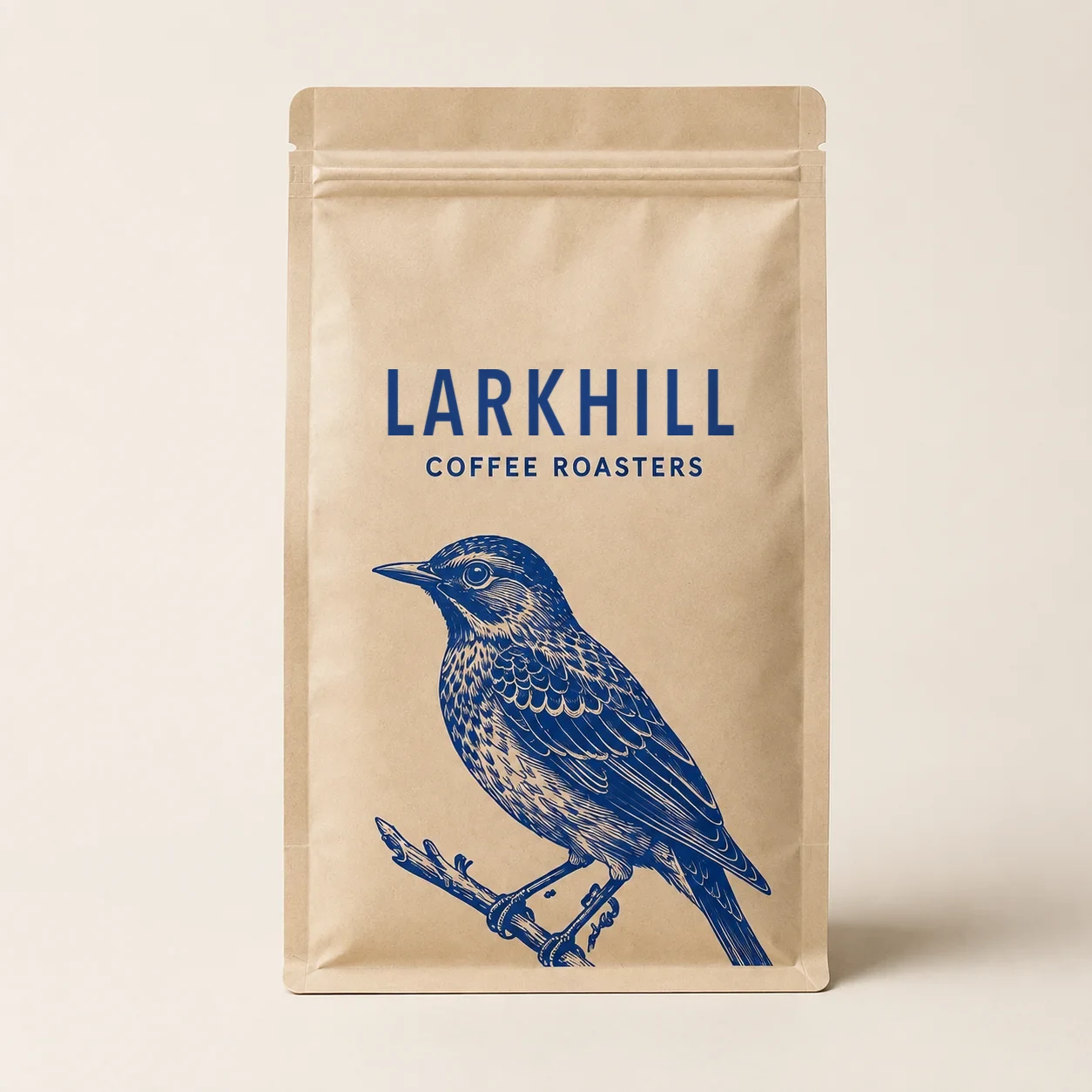 Best seller
The Daily Blend $22
Chocolate, toasted almond
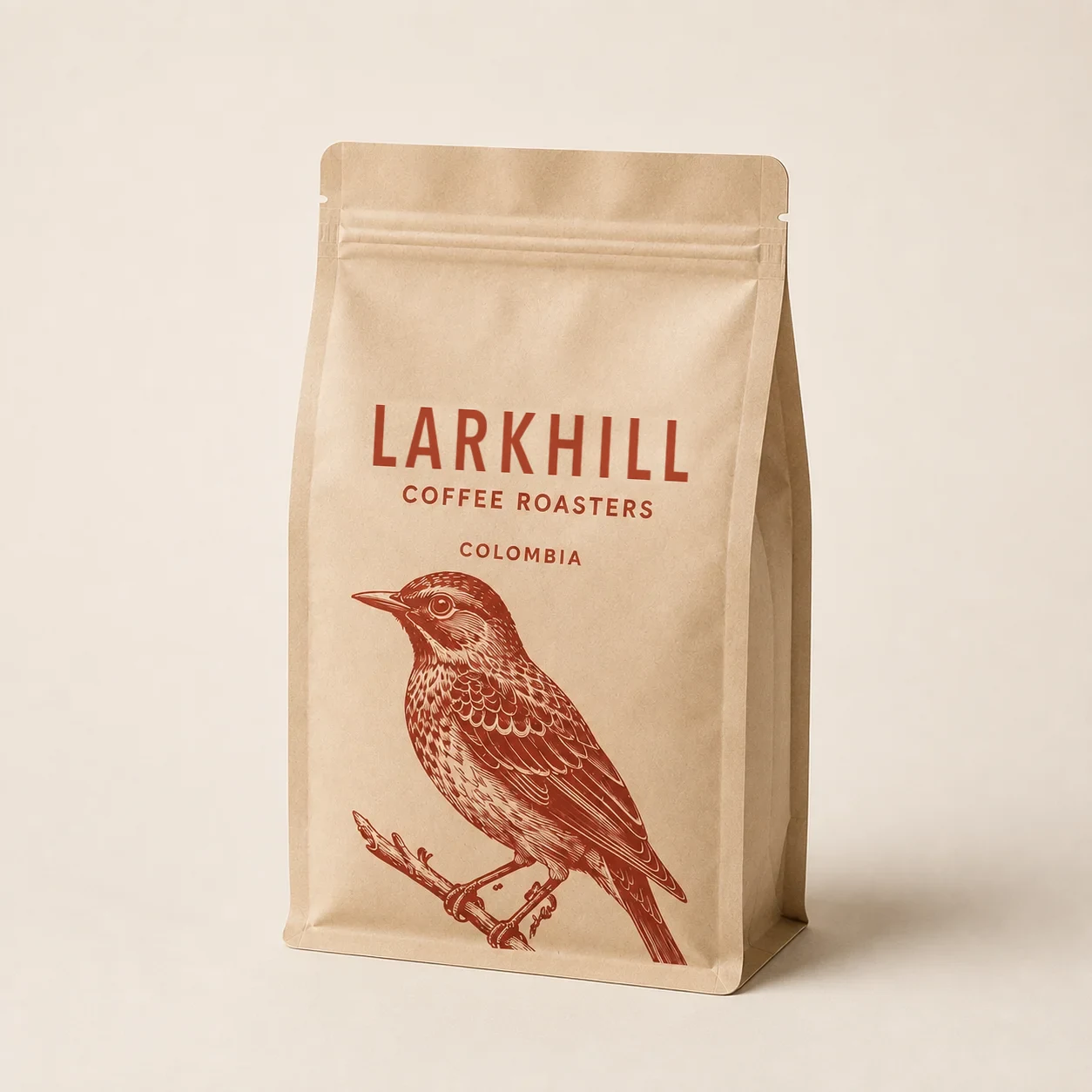 Low inventory
Colombia Single Origin $24
Red apple, panela
LimitedEthiopia Guji $26
Peach, jasmine, honey
Notes in an annotation frame become working carousels, sticky sections and accordions.
- Annotations read, never shown
- Checked at desktop and phone
- Preview before you publish
 MenWomenCollectionsThe lab2
FW26 — New this season
New: Glide 3
Built for the long way home.
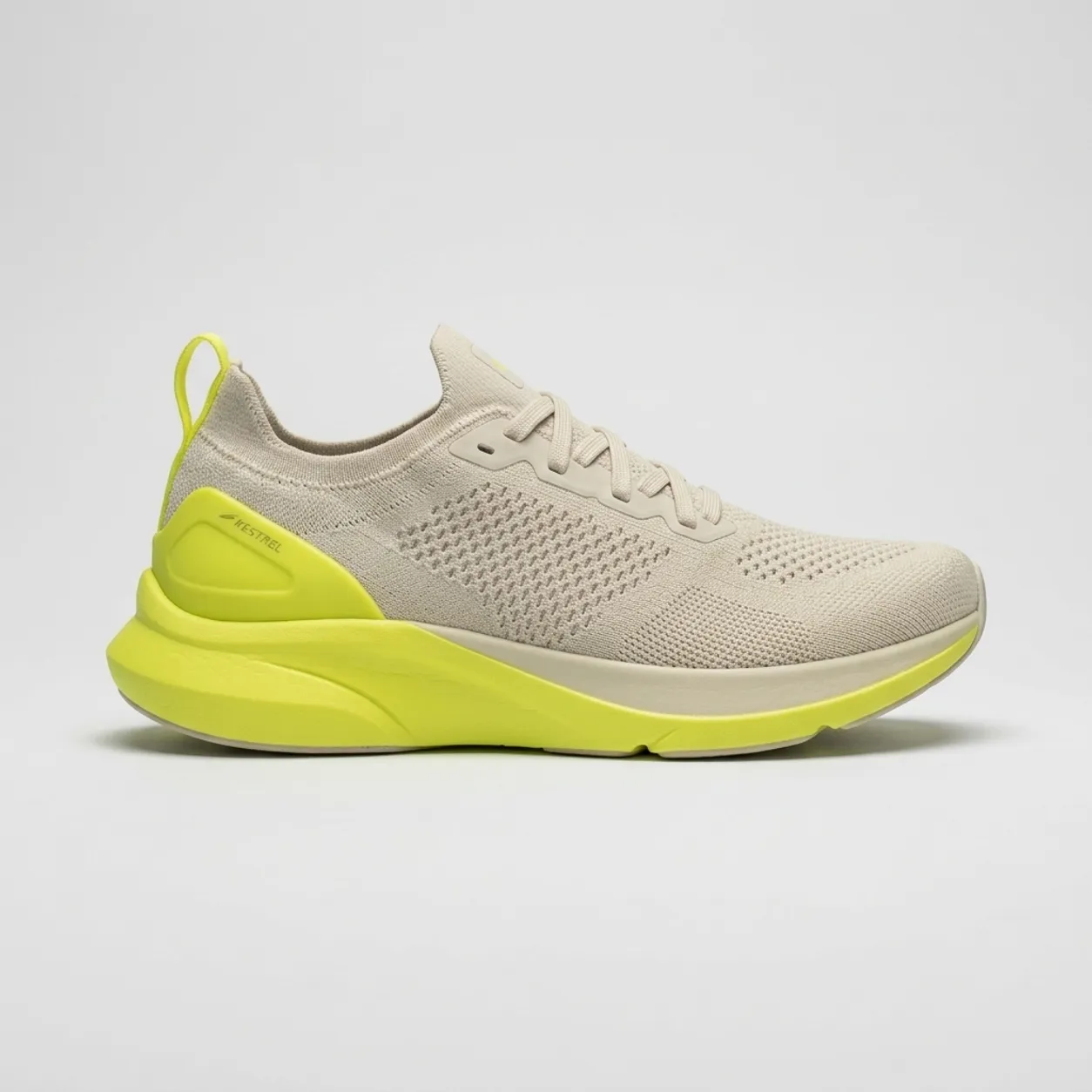 Glide 3$160 · ★ 4.8
New this season
12 productsShop allNewGlide 3
$160
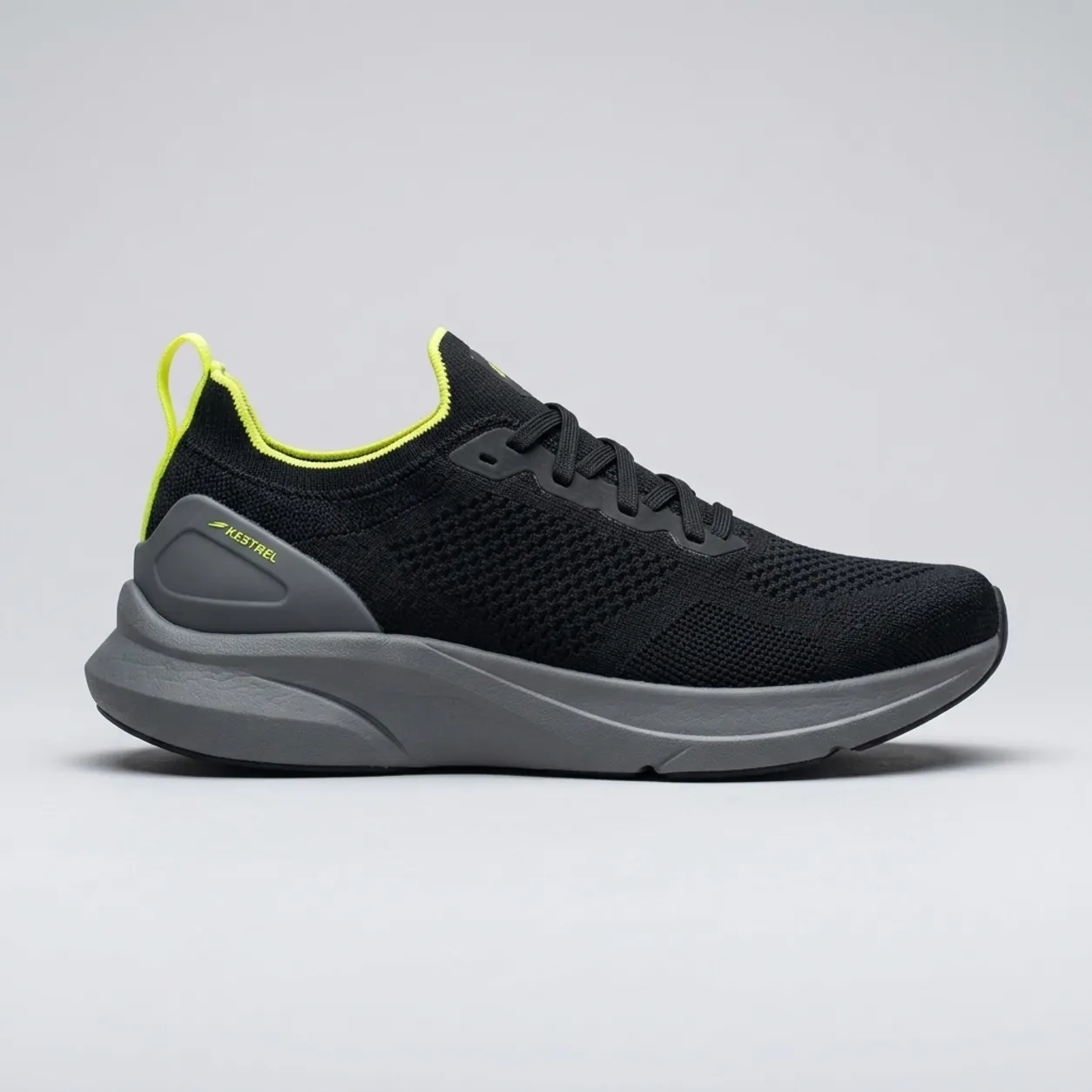 Lightweight
Tempo Trainer
$140$165Save 15%
Shop the rangeWomen MenWomenCollections2New: Glide 3
Built for the long way home.
Lightweight road shoes engineered for everyday miles.
NewGlide 3$160 · ★ 4.8New this season
Best sellersNewWomenNewRunning shoes
Glide 3
4.8 · 1,284 reviews$160
LightweightRunning shoes
Tempo Trainer
4.8 · 861 reviews$140$165-15%
Women Our story
Every mile, a little lighter.
CushioningFirm → Max
A supercritical foam midsole and a rockered heel that rolls you forward. Built for easy 10Ks and long Sunday runs.
“Ran a half straight out of the box. Zero hot spots, fresh legs on Monday.”
Marcus D. Verified buyer
2NewNew: Glide 3
Built for the long way home.
Lightweight road shoes engineered for everyday miles.
Shop the Glide 3New this season
Shop allNewGlide 3
$160
LightweightTempo Trainer
$140$165Save 15%
Every buy button goes to your Shopify cart and checkout.
- Shopify cart and checkout
- Real products and prices
- Bundles and add-ons
 Shop sodas Variety packsFind usAboutRewardsUSD $
Home / Shop sodas / Cherry Limeade
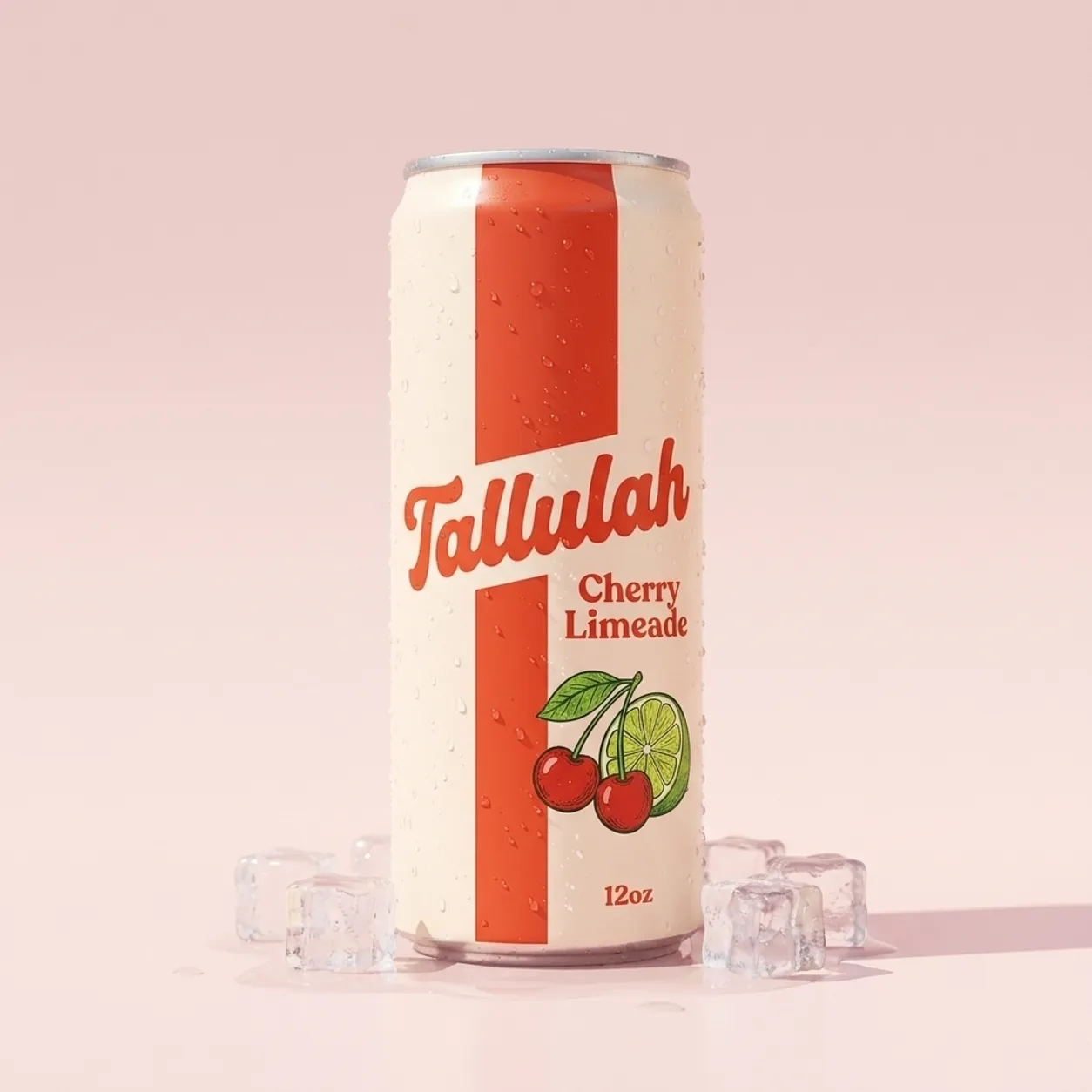 Best seller5gsugar1 / 6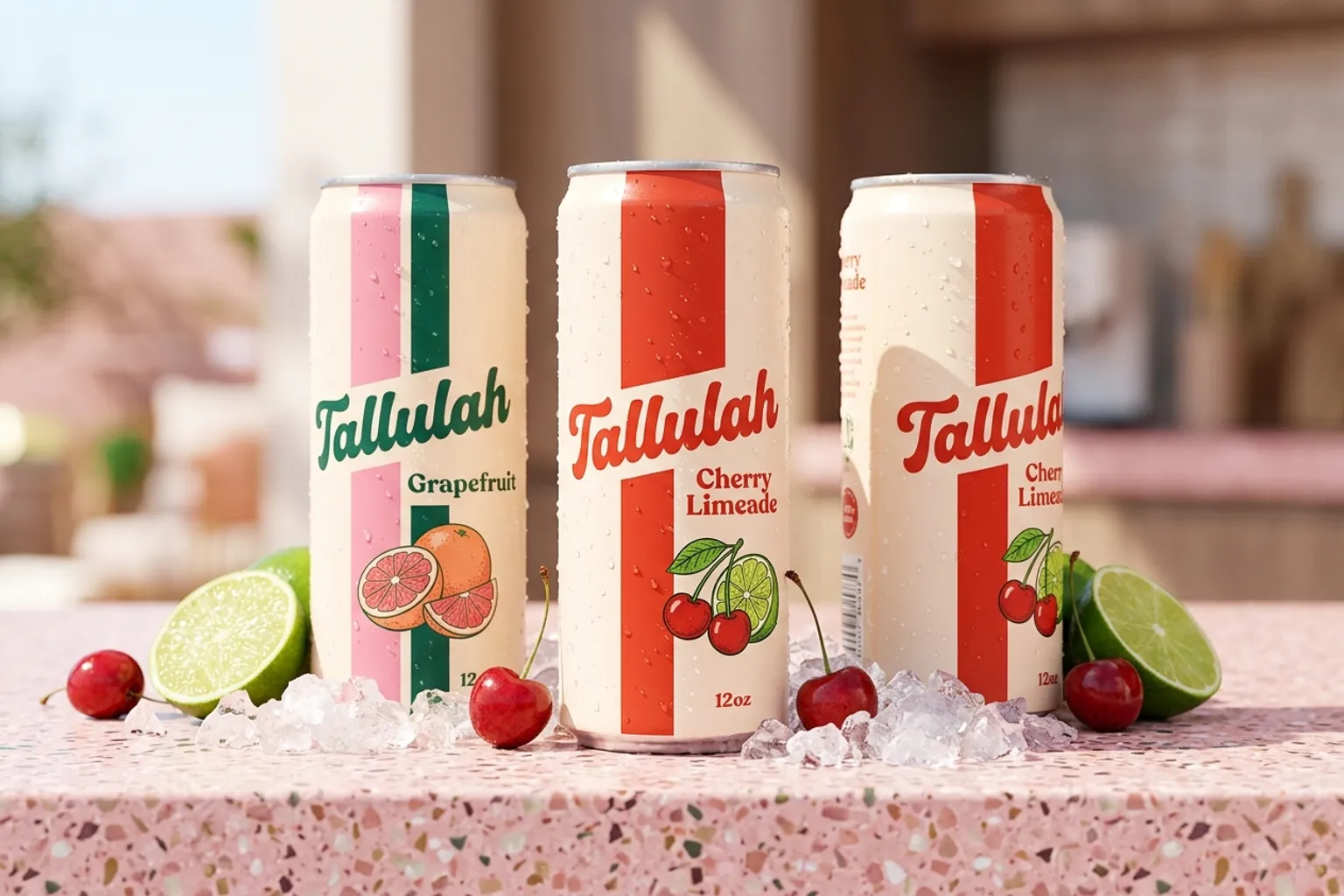
“Finally a soda I actually crave at 3pm. Tastes like the fountain, none of the crash.”
Jess M. Verified buyer · Cherry Limeade 24-pack
Prebiotic soda · 12 oz cans
Cherry Limeade
Tart cherry and squeezed lime over a crisp, bubbly base, with apple cider vinegar for a little gut love. Best poured over ice.
Flavor: Cherry Limeade5 flavors

Ships in 1–2 days 30-day taste guarantee Best served cold
Your cart (1)
You’ve unlocked free shipping
1Cherry Limeade
24 cans · One-time purchase
Pairs well with
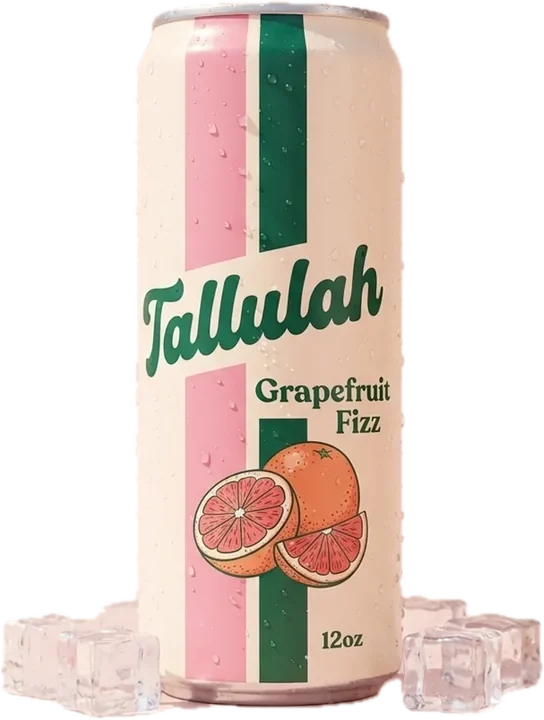
Grapefruit Fizz · 12 cans$29.99 · $2.50/can+ AddSubtotal$54.99
You save $16.77Taxes calculated at checkout
VISAMCAMEXDISC
Cart › Information › Shipping › Payment
Express checkout
OR
Contact Log in
Emailmaya.okafor@mailbox.comEmail me with news and offers
Delivery
Country/RegionUnited StatesFirst nameMayaLast nameOkaforAddress2140 Alder Street, Apt 3CityPortlandStateOregonZIP code97214Continue to shipping1Cherry Limeade
24 cans · One-time purchase
Subtotal · 1 item$54.99
ShippingFREE
Estimated taxesNext step
TotalUSD$54.99
Total savings $16.77
Secure, encrypted checkout
Hosting, SSL and search settings come with the page.
- Your domain or a subdomain
- SEO titles and social previews
- Redirects from old URLs
 Larkhill Coffee/ethiopia-gujiPublish siteLog inCart (0)
Limited release · 1,800 bags · 6 weeks only
Ethiopia Guji is back.
A natural-process lot from 2,100 meters in the Guji Zone, roasted light to keep every bit of peach and jasmine.
1,296 of 1,800 bags claimed$2.17 per cup
Ships Oct 21 Direct trade, $4.10/lb to farmers
Justback!Lot 14 · Harvest Dec 2025
Origin
Guji Zone, Oromia
Process
Natural, 21-day dry
Elevation
2,100 meters
Variety
Heirloom Kurume
“The cup tastes like a peach that fell into a jar of honey.”
— Tsegaye Bekele, head of the Guji washing station we buy from
How to brew it
01
Pour-over
22 g coffee, 350 g water at 94°C. Bloom 45 s, finish by 3:15.
02
Iced
Brew double strength over 150 g ice. The peach gets louder cold.
03
Espresso
18 g in, 42 g out in 28 s. Pull it long for a juicy shot.
First cups are in
4.9 · 1,284 reviews“Ordered three bags last year and regretted not ordering six.”
Noor A. · Verified buyer
Subscriber since 2022
“Iced, it tastes like peach tea. My whole office asked what it was.”
Chris B. · Verified buyer
Pour-over and iced
“Best light roast I've had outside of a café in Addis.”
Selam G. · Verified buyer
Espresso
Keep the cupboard full
Best sellerThe Daily Blend $22
Chocolate, toasted almond
Low inventoryColombia Single Origin $24
Red apple, panela
LimitedEthiopia Guji $26
Peach, jasmine, honey
Publish
Ethiopia Guji is back.Log inCart (0)Limited release · 1,800 bags · 6 weeks only
Ethiopia Guji is back.
A natural-process lot from 2,100 meters in the Guji Zone, roasted light to keep every bit of peach and jasmine.
1,296 of 1,800 bags claimed$2.17 per cup
Ships Oct 21 Direct trade, $4.10/lb to farmers
Justback!Lot 14 · Harvest Dec 2025
Origin
Guji Zone, Oromia
Process
Natural, 21-day dry
Elevation
2,100 meters
Variety
Heirloom Kurume
“The cup tastes like a peach that fell into a jar of honey.”
— Tsegaye Bekele, head of the Guji washing station we buy from
How to brew it
01
Pour-over
22 g coffee, 350 g water at 94°C. Bloom 45 s, finish by 3:15.
02
Iced
Brew double strength over 150 g ice. The peach gets louder cold.
03
Espresso
18 g in, 42 g out in 28 s. Pull it long for a juicy shot.
First cups are in
4.9 · 1,284 reviews“Ordered three bags last year and regretted not ordering six.”
Noor A. · Verified buyer
Subscriber since 2022
“Iced, it tastes like peach tea. My whole office asked what it was.”
Chris B. · Verified buyer
Pour-over and iced
“Best light roast I've had outside of a café in Addis.”
Selam G. · Verified buyer
Espresso
Keep the cupboard full
Best sellerThe Daily Blend $22
Chocolate, toasted almond
Low inventoryColombia Single Origin $24
Red apple, panela
LimitedEthiopia Guji $26
Peach, jasmine, honey
Built for campaign launches
A landing page from Figma is one step in a launch. These pages pick up where it ends.
Match the page to the ad
Build a page per ad, with the ad's own offer, angle and look.
Test the page
Split visitors between two versions on one link and keep the one that sells.
See where shoppers click
Clicks, scroll and revenue per element on every page you publish.
Before you get started
A link to the file or the specific frame, not a team or project link. One frame is enough when the file also has the matching desktop or mobile frame. If the file has several pages, name the frame you want in your message.
How things move. Describe carousels, sticky sections, dropdowns and accordions in a separate annotation frame and link it in your message. Replo follows the notes, keeps them off the page, and checks those interactions at desktop and phone widths.
No, but it helps. With a mobile frame, Replo matches it on phones and builds tablet and desktop from the desktop frame. With only a desktop frame, desktop matches and you can ask Replo to adapt the page for phones after the first preview.
No. A second import of a page you've already built is refused, so it can't overwrite your edits. Ask Replo to change the page instead, or import a new frame as a new page.
On your own domain or a subdomain like lp.yourstore.com, or on a free replosites.com address to start. Hosting, SSL, search titles and social previews come with the page.
No. Replo builds the page on your own domain or a free replosites.com subdomain, and every buy button uses your Shopify cart and checkout. To put a Figma design inside your existing theme, use Replo Theme Builder.
Keep reading
Product
Figma to Shopify
Paste a Figma frame link and get a live page with your Shopify checkout.
Builders
Shopify AI store builder
New store pages on your Shopify catalog, with your cart and checkout.
Product
Figma to website
Build a whole site that sells from your Figma frames, one page at a time.
Builders
AI website builder
Describe your business or paste a link, and Replo builds the whole site.
Websites
SaaS website builder
Homepage, pricing and feature pages from SaaS templates, live on your domain.
Websites
App landing page builder
Screenshots, store buttons and a waitlist into Klaviyo, on your own domain.