Store report guides
Find the Shopify report that answers your question
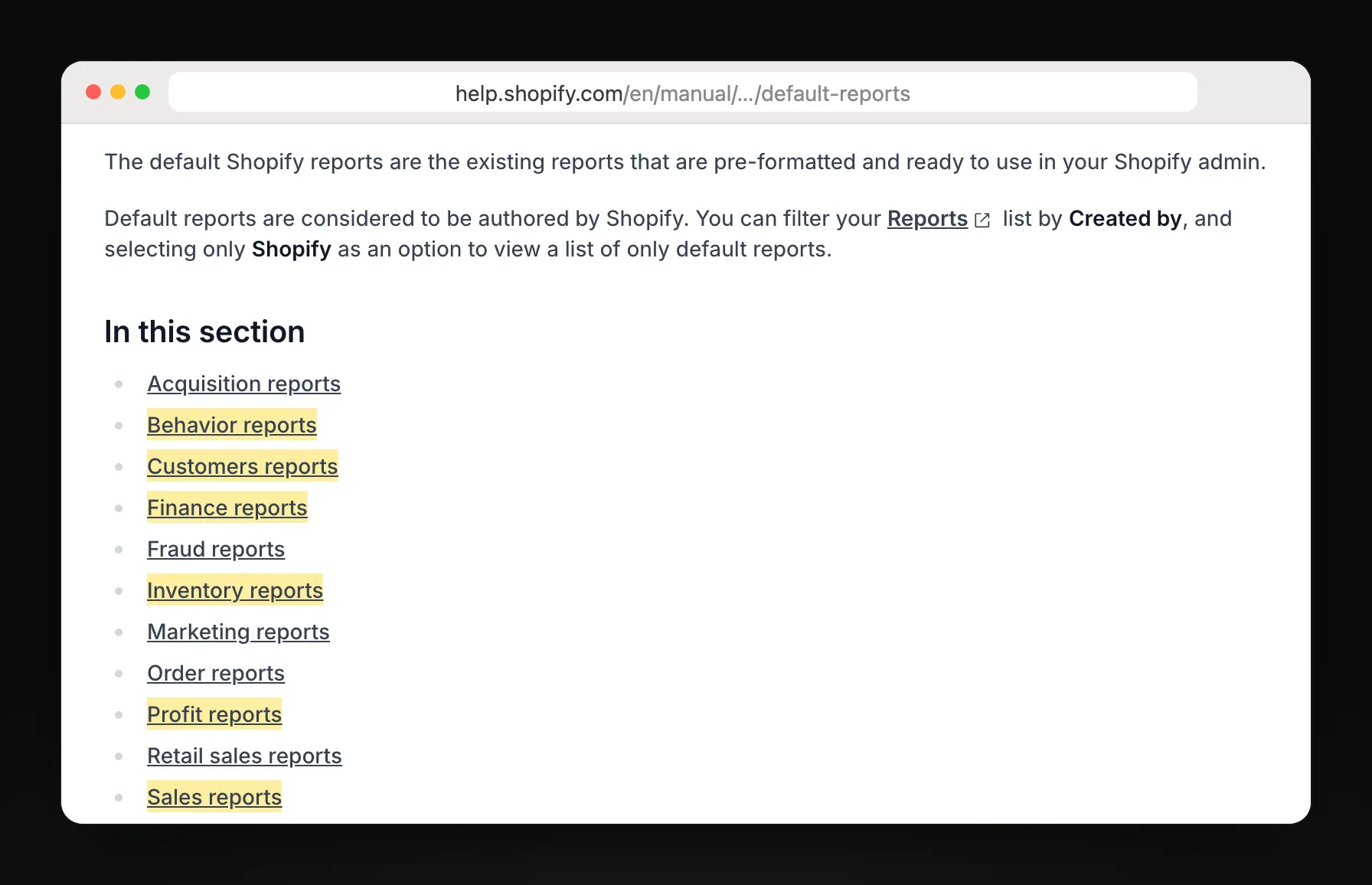
Shopify keeps its reports under Analytics, then Reports, sorted into categories. Find your question below, open the report it names, and see what each one leaves out.
What Shopify reports are
Shopify reports are the built-in tables under Analytics, then Reports, in your Shopify admin, sorted into categories like Sales, Customers, Behavior, Inventory and Profit margin. They update about a minute after each sale and open when you log in; Shopify doesn't email them on a schedule.
Find the report for your question
Every report below is under Analytics, then Reports, in the category named.
| You want to know | Category | Report | Guide |
|---|---|---|---|
| How much did I sell? | Sales | Total sales over time | Read the steps |
| How many visitors bought? | Behavior | Conversion rate over time | Read the steps |
| Who came back to buy again? | Customers | New vs returning customers | Read the steps |
| What's running low? | Inventory | Inventory remaining per product | Read the steps |
| What do I make on each product? | Profit margin | Gross profit by product | Read the steps |
| Is my order size growing? | Sales | Average order value over time | Read the steps |
| How much tax did I collect? | Finances | Taxes | Read the steps |
Step-by-step guides
Where each report is, which one to open, and what it leaves out.
Run a sales report
Total sales over time, by product, by channel and by discount code.
Check your conversion rate
Conversion rate over time and the checkout funnel, step by step.
Run an inventory report
Stock on hand, sell-through rate and days of stock left.
See returning customers
New vs returning customers, cohorts and who buys again.
See profit by product
Gross profit by product, once each item has a cost.
Find finance and tax reports
Sales, payments and taxes in the reports your accountant asks for.
Track average order value
Average order value over time, and how Shopify calculates it.
Export your orders
Every order as a CSV, filtered by date or status.
Get the numbers sent to you instead
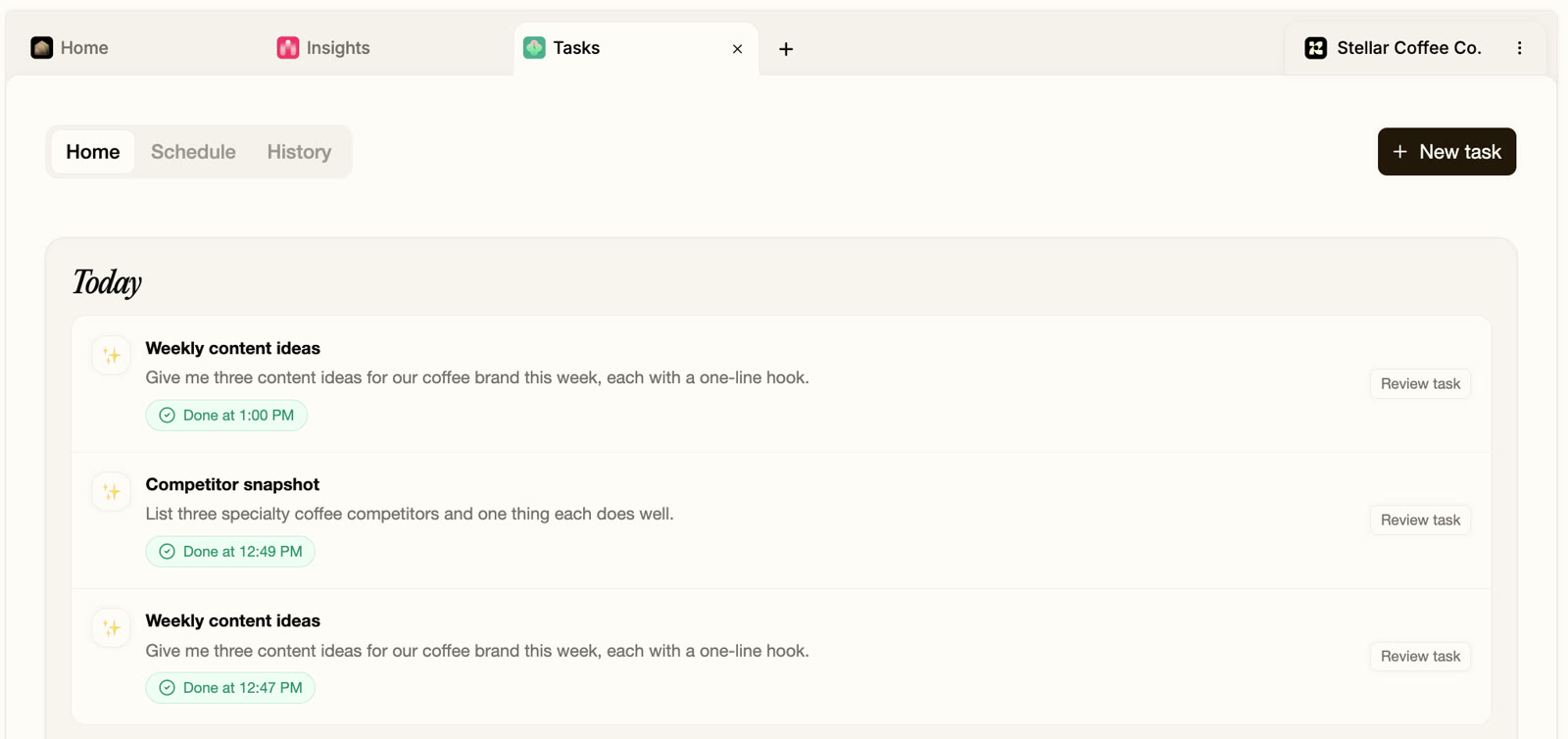
Shopify's reports wait for you to log in. Replo writes the weekly version and emails it: your sales against last week, which ads paid for themselves, and how your pages convert.
Frequently asked questions
- Where are reports in Shopify?
- In your Shopify admin, open Analytics, then Reports. Use the Category filter to list one kind, such as Sales, Customers or Inventory. In the Shopify app, tap the menu icon, then Analytics, then Reports, and filter the same way.
- What's the difference between Analytics and Reports in Shopify?
- Analytics is the dashboard of key numbers like sales, sessions and conversion rate. Reports are the full tables behind those numbers, which you can filter, group by day, week or month, and export as a CSV.
- Can Shopify send me reports by email?
- Not on a schedule: you open them in the admin or export a CSV, and Shopify Flow can only send emails you build yourself. Replo can email your weekly sales, ad results and page conversion to up to 10 teammates.
Get a daily report card
Replo has a daily report card of your business ready every morning, with what changed and why.

Keep reading
Product
AI analyst for your store
Ask about sales, traffic and ads in plain English, then get the report by email.
Product
Automated store reports
Sales, ad, search and site reports written and emailed to your team on schedule.
Shopify reports
Run a sales report
Total sales over time, by product, by channel and by discount code.
Shopify reports
Check your conversion rate
Conversion rate over time and the checkout funnel, step by step.
Glossary
What is GMV (gross merchandise value)?
GMV (gross merchandise value) is the total value of goods sold through a store or marketplace before fees, returns and discounts.
Glossary
What is NPS (net promoter score)?
NPS (net promoter score) measures loyalty by asking how likely customers are to recommend you, from 0 to 10: the share of promoters minus the share of detractors.