How to see returning customers in Shopify
Short answer
In your Shopify admin, go to Analytics, then Reports, filter Category to Customers, and open New vs returning customers for the count over time. Returning customers lists everyone with two or more orders, and Customer cohort analysis shows how many come back each month. Replo doesn't read customer-level data yet.
Open the report in your Shopify admin
Open Analytics, then Reports
From your Shopify admin's left menu. In the Shopify app, tap the menu icon first.
Filter Category to Customers
Click the Category filter and pick Customers, so only customer reports are listed.
Open New vs returning customers
First-time and returning customer counts for the period, grouped by day, week or month.
Open Returning customers for names
Everyone with two or more orders, with order count, average spend per order and total spend.
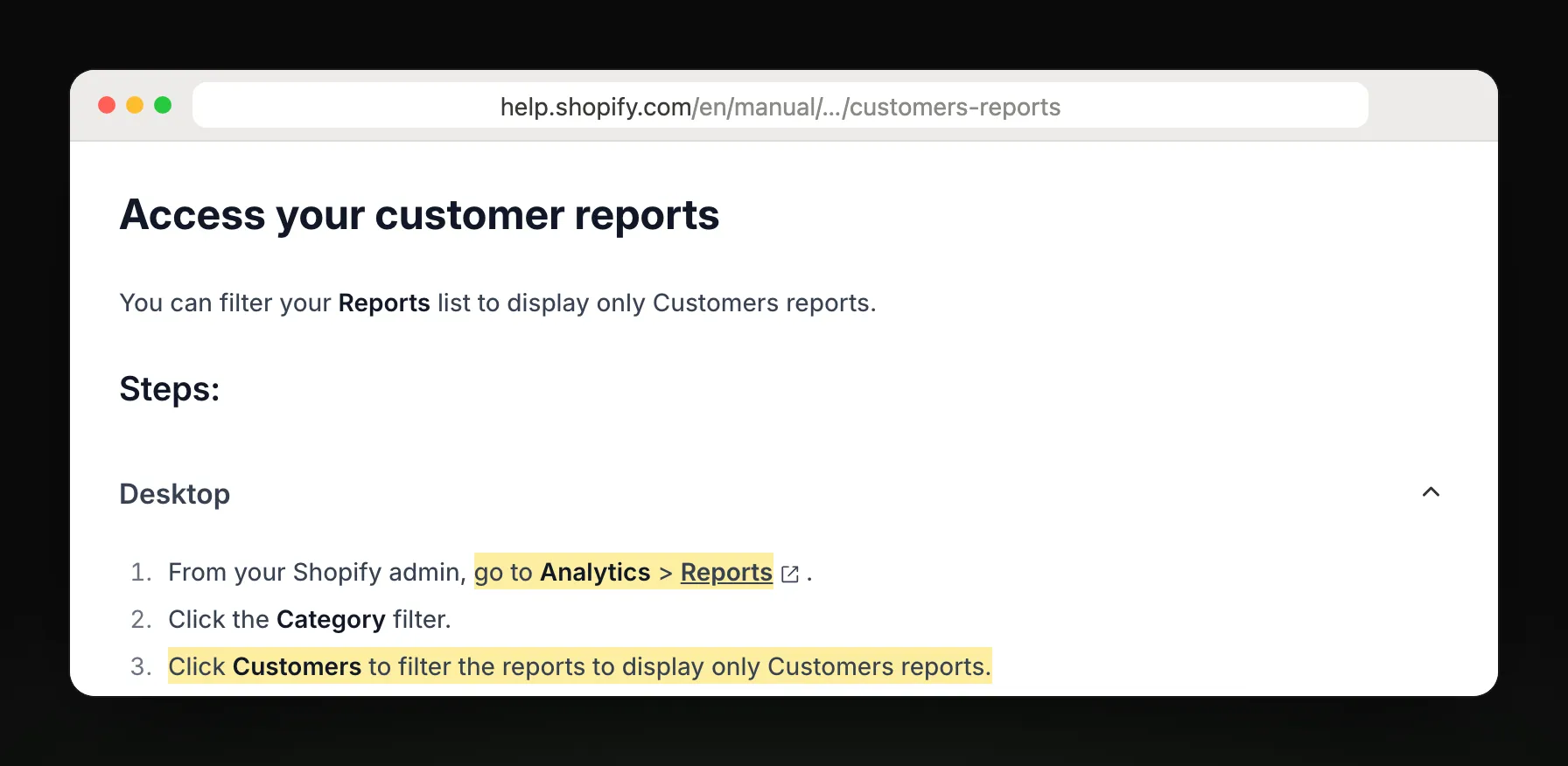
Steps and report names from Shopify Help Center: Customers reports.
Which customer report answers your question
| You want to know | Report |
|---|---|
| How many came back to buy? | New vs returning customers |
| Who are my repeat buyers? | Returning customers |
| Who bought only once? | One-time customers |
| Do customers stick around? | Customer cohort analysis |
| Who's likely to spend the most? | Predicted spend tier |
| Who's slipping away? | RFM customer analysis |
| Where are new customers? | Customers by location |
What Shopify's report leaves out
It isn't sent to you. You open the admin each time, or export a CSV.
Returning is judged on a customer's whole order history, so someone can show as returning in the period of their first order.
Most customer reports may not show the last 12 hours yet.
Cohort projections need 24 months of store data, so newer stores don't see them.
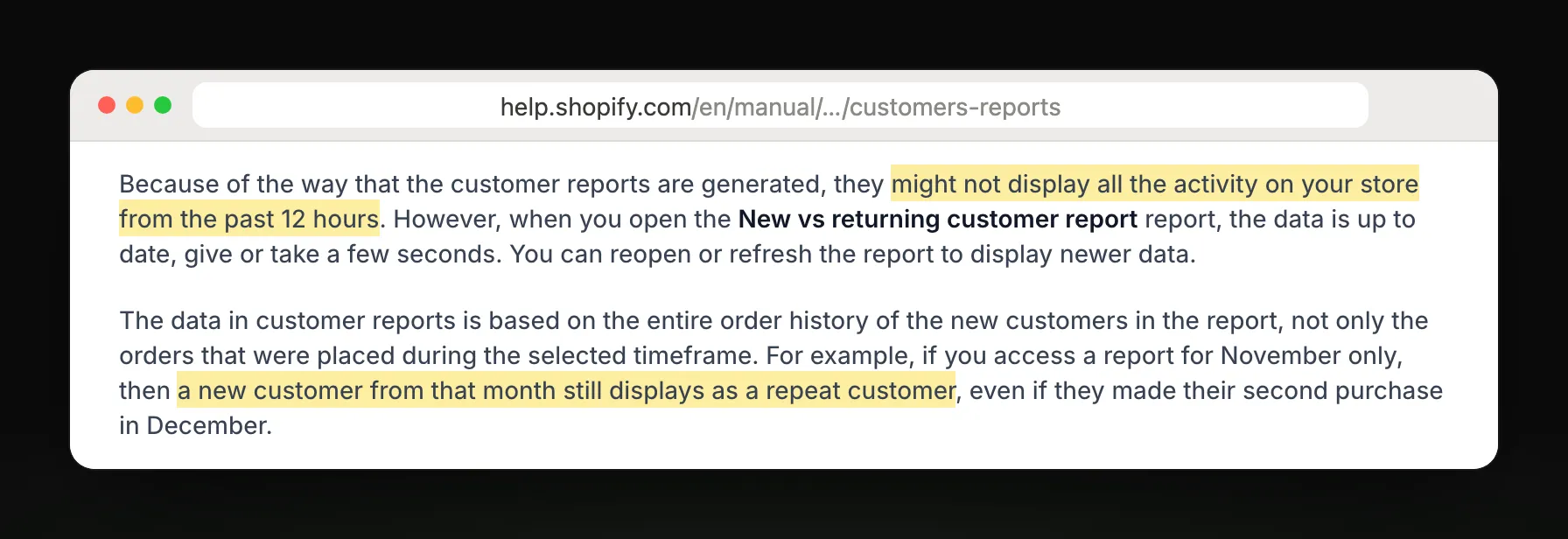
Get weekly sales and campaign results by email
What Replo can send beside it
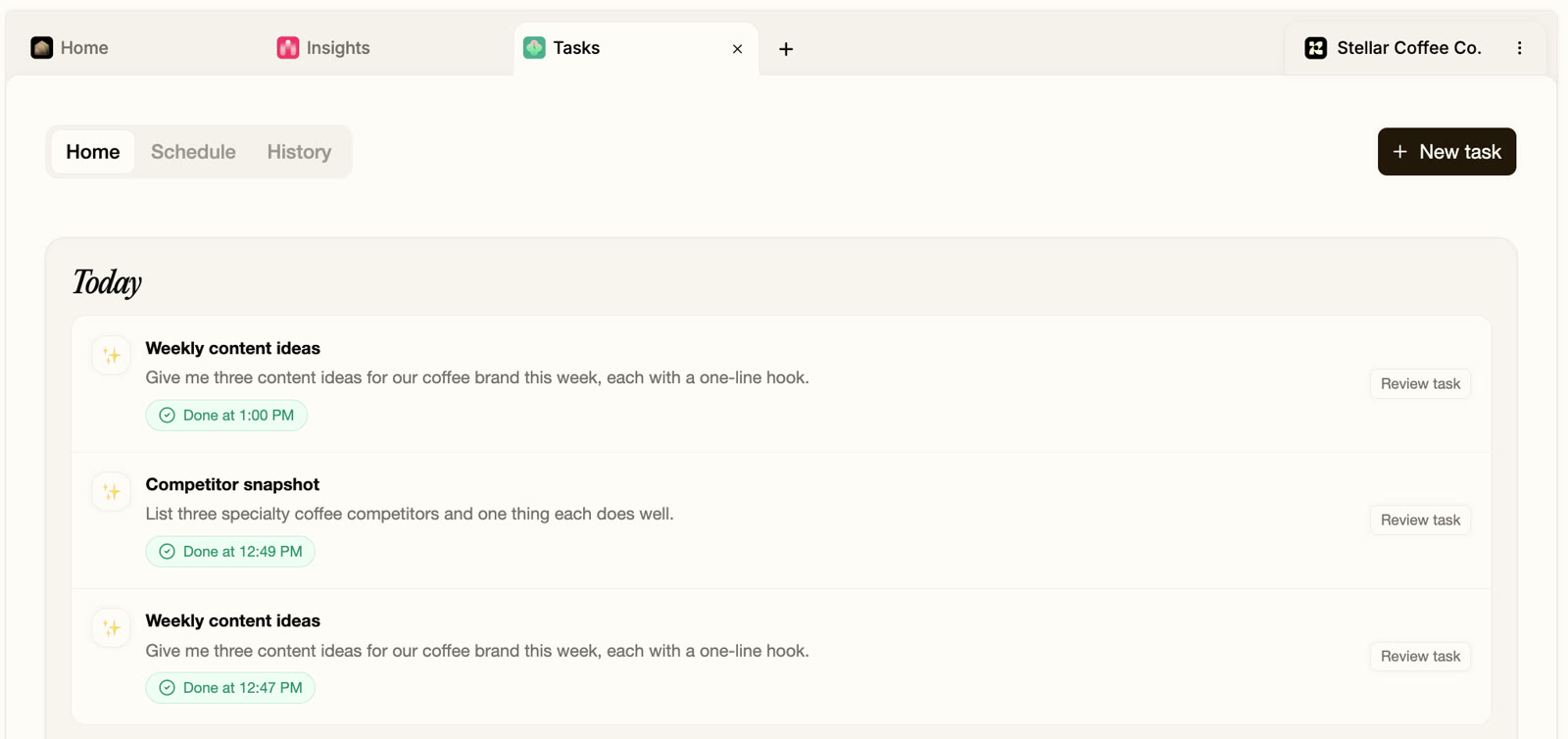
Replo doesn't read customer-level data yet. It can email your weekly sales total and, if you use Klaviyo, a weekly recap of every campaign's opens, clicks and revenue.
Replo sends today
- Total sales against last week
- Email campaign recap from Klaviyo
- Ad spend and ROAS by ad
- Emailed to up to 10 teammates
Still in Shopify
New vs returning customers
Cohorts and repeat purchases
Customer lists and spend
Frequently asked questions
- Where can I see returning customers in Shopify?
- In your Shopify admin, go to Analytics, then Reports, filter Category to Customers, and open New vs returning customers for counts, or Returning customers for the list of people with two or more orders.
- How does Shopify define a returning customer?
- A returning customer placed an order when their order history already held at least one order. Shopify looks at the whole history, not just the dates you picked, so a customer's first and second orders can fall in the same report period.
- How do I see if customers come back over time?
- Open Customer cohort analysis. It groups customers by the month of their first order and shows how many ordered again in each later month, as a heatmap or a retention curve. Projections appear once the store has 24 months of data.
- Can Shopify email me returning customer numbers?
- Not as a scheduled report: you open it in the admin. Shopify Flow can send a scheduled email you build yourself. Replo doesn't read customer data yet; it can email your weekly sales and a Klaviyo campaign recap.