How to run a sales report in Shopify
Short answer
In your Shopify admin, go to Analytics, then Reports, filter Category to Sales, and open Total sales over time. For each product's numbers, open Total sales by product. Shopify shows these when you log in; Replo can email your total sales against the week before every Monday.
Open the report in your Shopify admin
Open Analytics, then Reports
From your Shopify admin's left menu. In the Shopify app, tap the menu icon first.
Filter Category to Sales
Click the Category filter and pick Sales, so only sales reports are listed.
Open the report for your question
Total sales over time is the overall view; the table below says which report answers what.
Set the date range and grouping
Pick the dates, then group by day, week or month. Export a CSV from the report if you need the rows.
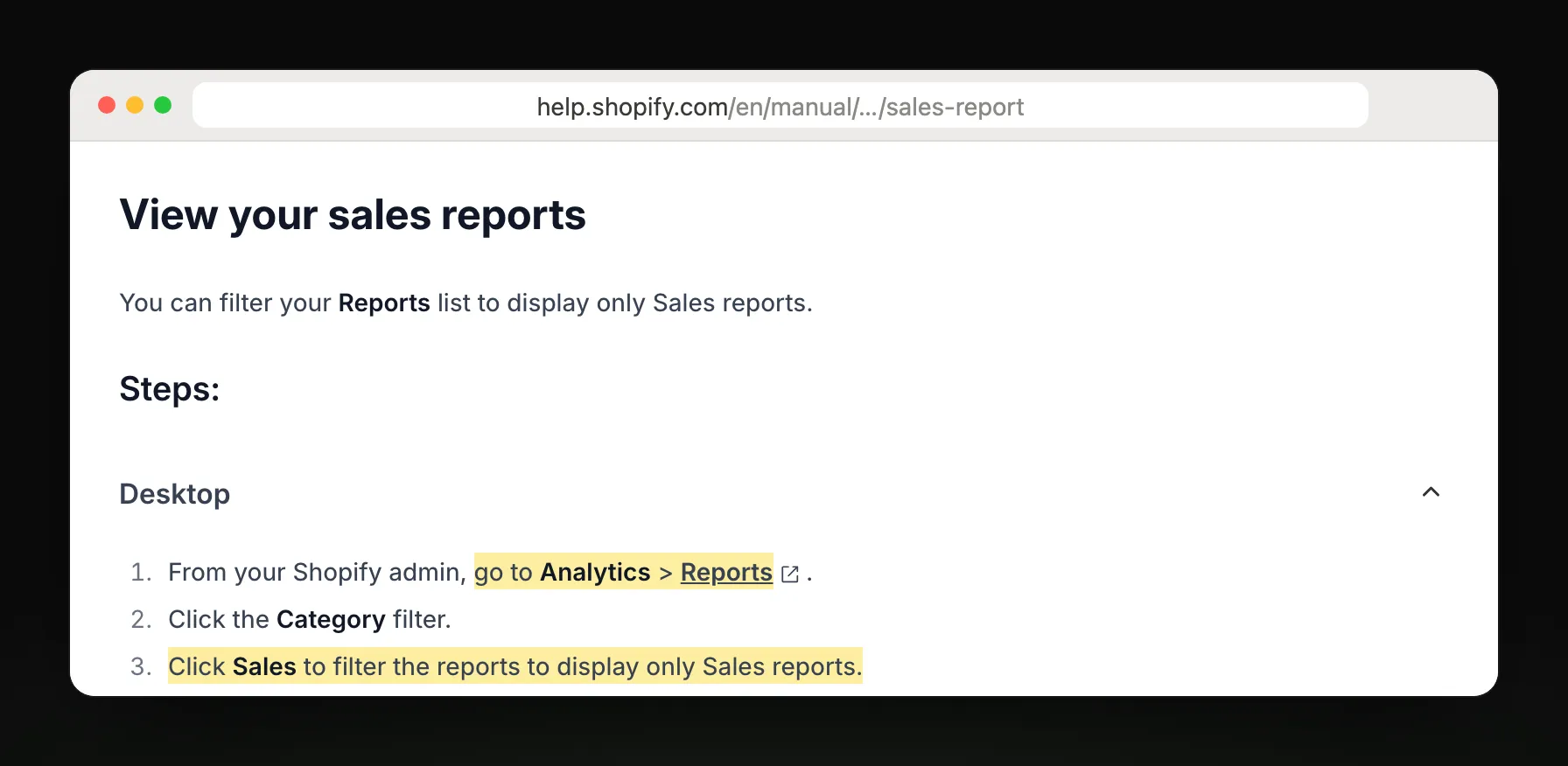
Steps and report names from Shopify Help Center: Sales reports.
Which sales report answers your question
| You want to know | Report |
|---|---|
| How much did I sell this week? | Total sales over time, grouped by day or week |
| Which products sold the most? | Total sales by product |
| Which size or color sold? | Total sales by product variant |
| Which channel sold it? | Total sales by sales channel |
| Did my discount code work? | Sales by discount codes |
| Which site sent the buyer? | Total sales by referrer |
| Who are my biggest buyers? | Sales by customer name |
| Is my order size growing? | Average order value over time |
What Shopify's report leaves out
It isn't sent to you. You open the admin each time, or export a CSV; Shopify's own guide points to a reporting app for scheduled delivery.
Ad spend isn't beside the sales, so you can't see from it which ads paid for themselves.
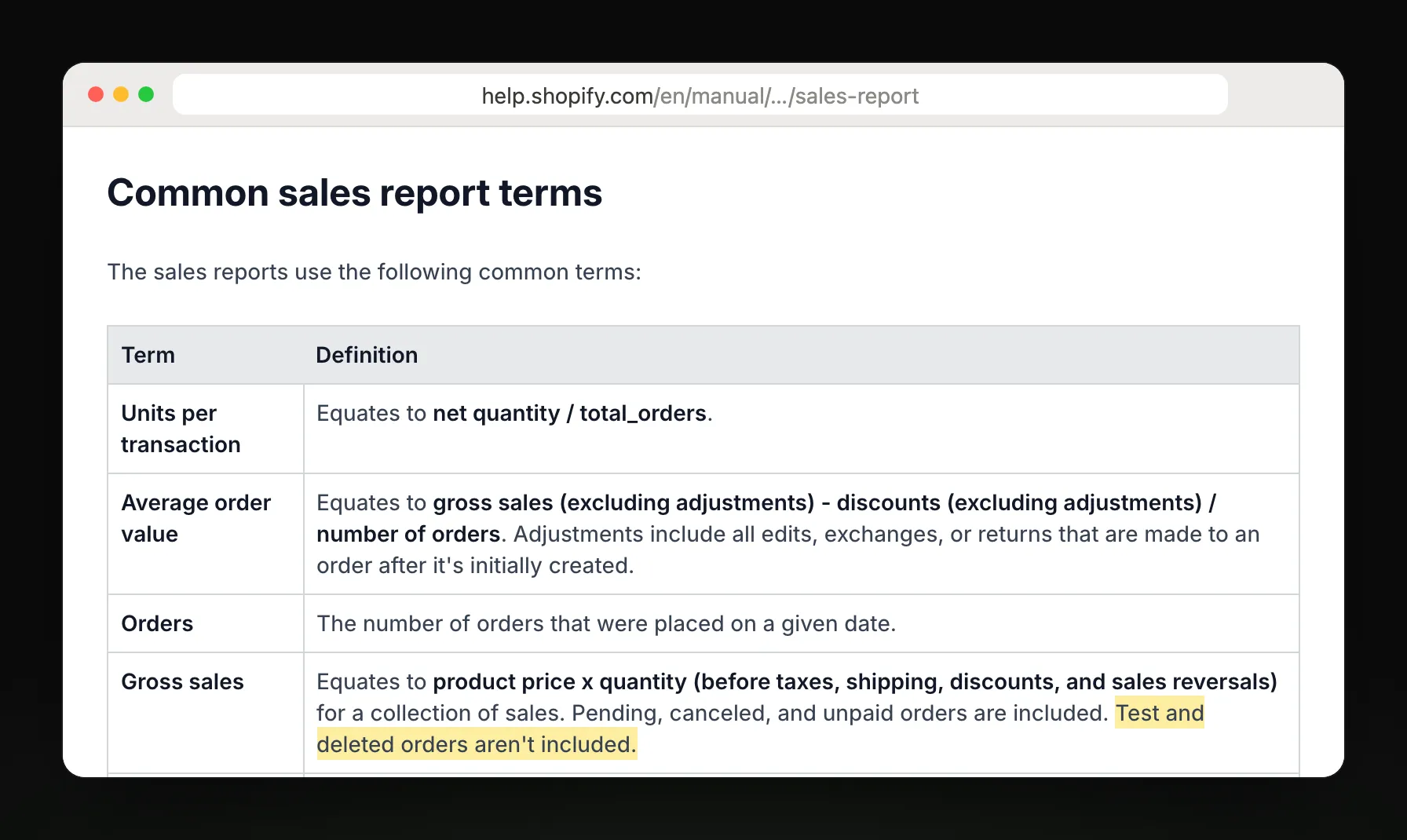
Deleted and test orders are left out, and chargebacks aren't included, so totals can differ from your payouts.
Renaming a product or changing its type can split one product across two rows.
Get last week's sales in your inbox every Monday
Weekly sales summary, by email
Connect your store and Replo writes a weekly sales summary: last week's total sales against the week before, in your store's timezone, emailed to up to 10 people in your workspace. Add ad spend and ROAS by ad from Meta Ads or Triple Whale in the same morning email.
Replo sends today
- Total sales against last week
- Monthly totals against last year
- Ad spend and ROAS by ad
- Sales on every Replo page
- Emailed to up to 10 teammates
Still in Shopify
Sales by product or variant in the email
Order- and customer-level detail
Delivery to Slack or Google Sheets
Frequently asked questions
- Where are sales reports in Shopify?
- In your Shopify admin, go to Analytics, then Reports, and filter Category to Sales. The same path works in the Shopify app from the menu icon. Total sales over time is the overall view; the others split sales by product, channel, discount or customer.
- How do I see sales by product in Shopify?
- Open Analytics, then Reports, and choose Total sales by product. Use Total sales by product variant to split by size or color. If a product was renamed, its sales can show on two rows, because reports keep the name it had at each sale.
- How do I see sales by day in Shopify?
- Open Total sales over time and group it by day. Change the date range at the top of the report, and export a CSV if you need the daily rows in a spreadsheet. Reports are current to about a minute after each sale.
- Can Shopify email me a sales report?
- Not as a scheduled report: Shopify's reports open in the admin. Shopify Flow can send a scheduled email you build yourself. Replo can email your total sales against last week every Monday, with ad spend beside it if you connect Meta Ads or Triple Whale.