How to export orders from Shopify
Short answer
In your Shopify admin, open Orders, filter the list to the orders you want, click Export, choose which orders and a file format, then click Export orders. Up to 50 orders download straight away; larger exports and exports by date are emailed to you and the store owner. Replo emails sales totals, not order rows.
Export orders from your Shopify admin
Open Orders and filter the list
Sort and filter by date, status or tag so the list holds the orders you want.
Click Export
The Export orders window opens with options for which orders to include.
Pick the orders and the format
Choose the current page, or Orders by date with start and end dates, then a CSV format.
Export orders or transactions
Export orders gives full order details; Export transaction histories gives captured payments only.
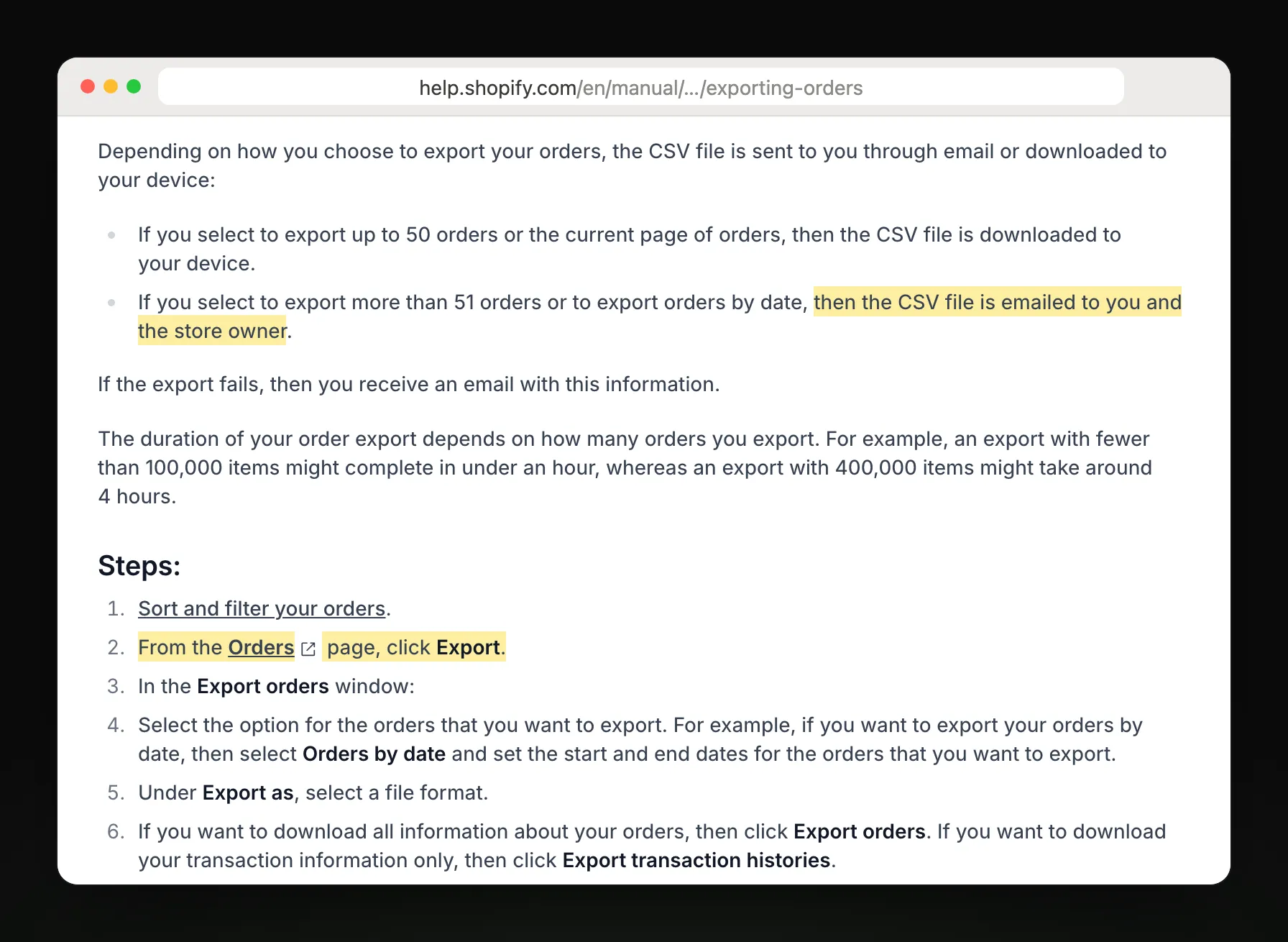
Steps and report names from Shopify Help Center: Exporting orders.
Which export answers your question
| You want to know | Use |
|---|---|
| Every detail of each order | Export orders |
| Payments captured on each order | Export transaction histories |
| Sales and taxes per order | Total sales by order report, then export |
| Totals by day or month | Total sales over time report, then export |
| Sales by product, not by order | Total sales by product report, then export |
What the export leaves out
An order with several items takes several rows, with most order fields blank on the extra rows.
Automatic discounts aren't in the Discount Code column.
Rows show products as they were when ordered, not their current names or prices.
Large exports come by email and can take hours for a big store.
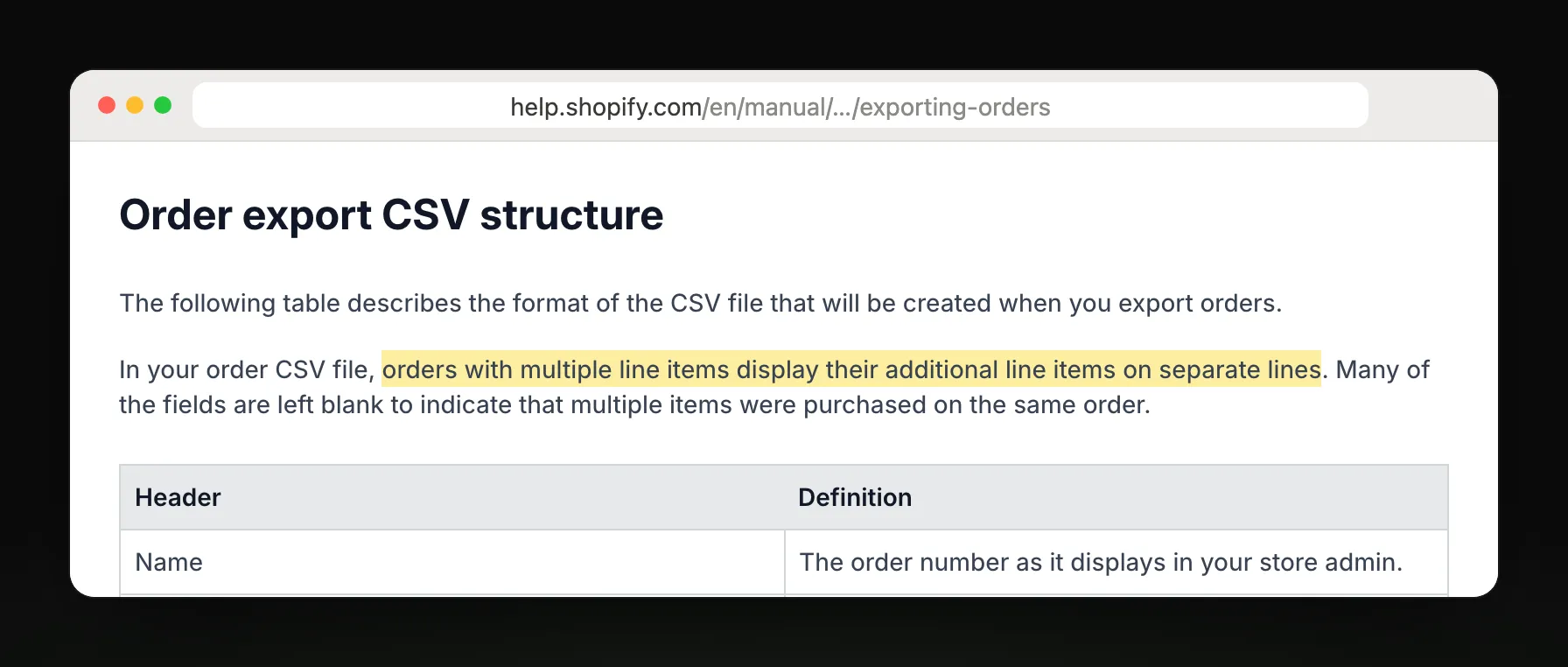
Get weekly totals without an export
Skip the export for weekly totals
If you export orders to total up the week, Replo can email last week's sales against the week before instead, every Monday, to up to 10 people in your workspace.
Replo sends today
- Total sales against last week
- Monthly totals against last year
- Ad spend and ROAS by ad
- Emailed to up to 10 teammates
Still in Shopify
Order rows and line items
Customer details per order
Delivery to Slack or Google Sheets
Frequently asked questions
- How do I export all orders from Shopify?
- Open Orders in your Shopify admin, click Export, and choose Orders by date with a start and end date that cover every order. Shopify emails the CSV to you and the store owner; a big store's export can take a few hours.
- Why does my Shopify order export have extra rows?
- Because each extra item in an order gets its own row, with most order-level fields left blank. Count unique order names, not rows, to get your number of orders, or use the Total sales by order report instead.
- Why didn't my Shopify export download?
- Exports of more than 50 orders, and any export by date, are emailed instead of downloaded. Check the inbox of your account and the store owner's. If an export fails, Shopify sends an email saying why.
- Can Shopify export orders automatically on a schedule?
- Not from the Orders page; each export is started by hand. Shopify Flow can send a scheduled email you build yourself. If you only need weekly totals, Replo can email last week's sales against the week before every Monday.